Show Control [Tab 11]
The Show Control display allows for the creation of show control events, organized into event lists. An event list defines how incoming show control events are processed by the console – any protocol that can be received by the console is handled here. Each event list is assigned a type of show control (timecode, analog inputs, RTC, or network). Specific information about setting up events for each show control type can be found later in this guide.
The show control display can be accessed via [Tab] [1][1], or {Show Control} on the Workspace Layout Menu.
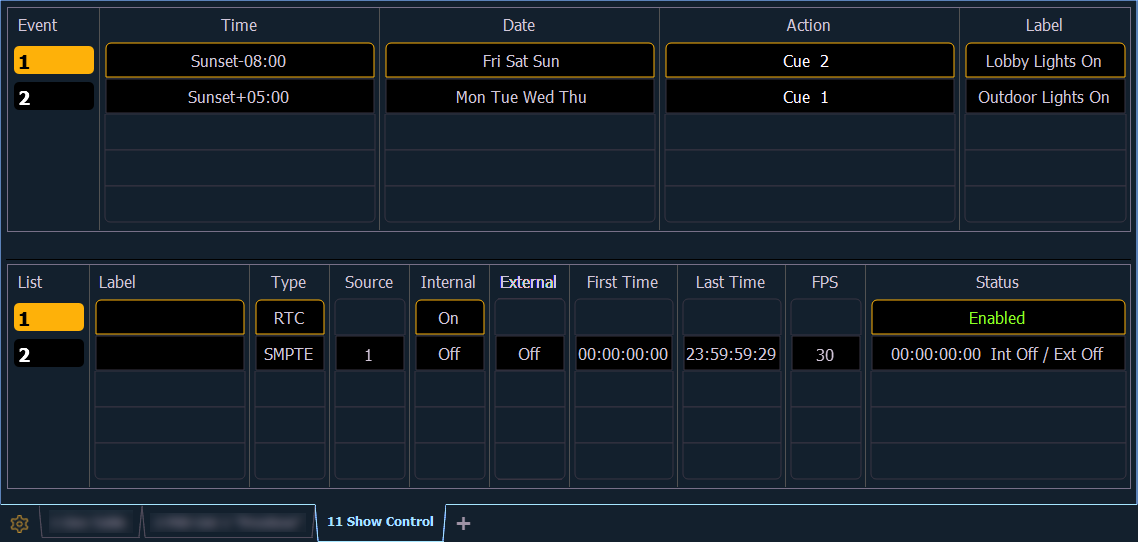
Event Lists
The lower portion of the show control display contains the event lists used in the console. Events are contained within a specific event list (like cues within a cue list). Each event list has a specific show control protocol type that it uses: MIDI, SMPTE, Analog, or RTC. Getting started with an event list is the same regardless of which show control protocol you are using.
Softkeys are available for the various event list options:
- List - is the event list number.
- <Event> [1][/][Enter] - creates event list 1.
- Label - names the event list.
- Type - sets which type of show control protocol to use; MTC, SMPTE, Analog, Network, or RTC. Only one protocol can be used at a time per list.
- Source - should match the Group ID used in the connected Net3 Show Control, I/O Gateway, or the built-in ports (when available).
- Internal - enables the list to use internal timing sources. See Internal and External Time .
- External - enables the list to use external timing sources. See Internal and External Time .
- First Time - sets the first time that the console will use when using internal timing.
- Last Time - sets the last time that the console will use when using internal timing.
- FPS - sets how many frames per second (FPS) will be used; 30, 25, 24.
- Status - current status of the event list.
Events
The upper portion of the show control display shows the specific events that are contained in each event list. An event consists of an input condition, such as a timestamp, real time, an address, or input value, and an action. An event plays back (or “fires”) when the input condition is met (for example, the timecode passes the given timestamp, or a contact closure at the given address changes). Multiple events can be fired at the same time; however a single action can only be placed in each event.
Eos Family consoles support three event actions:
- Cues can be run.
- Submasters can be bumped, faded (via analog only), and turned on and off.
- Macros execute without interaction with the command line, unless the macro is set to foreground mode.
If another macro is fired before the first macro completes, the first macro will finish its action before the second is started.
If a macro is selected as the intended action, it will fire using the macro mode specified. See Macro Editor [Tab 18] for information on macro modes.
Softkeys are available for the various event options:
- Event - is the event number, used to select or create a specific event from the command line. Can also use [Next]/[Last] to select/navigate through the events.
The event number is not fixed, it is just provided as a way to select an event. For example, in timecode lists, the events are always chronological. The event number will change to match the chronology.
- Time/Address - used to specify the conditions when the event should trigger the action. This could be timecode, time of day, sACN levels, MIDI input, string input, OSC input, or an address used for analog inputs.
Time can be assigned to a list of events by using a range.
- {Event}[1] [Thru] [1][0] [Time] [1] [Thru] [1] [0] [Enter]
- Date - used to specify when the event should trigger the action, used only for Real Time Clock (RTC).
- Action - is what the event is going to trigger; can be a cue, submaster, macro, or level by address, which sets the parameter at the assigned address to the incoming level manually.
- {Event} [1] [/] [1] {Action} {Level By Address} [2] [/] [1] [Enter]
- Label - names a specific event.